Complete Guide: Setting Up WhatsApp with Lynxbe
Complete Guide: Setting Up WhatsApp with Lynxbe
Nowadays, WhatsApp has become an essential communication tool for businesses in Israel. The WhatsApp module in Lynxbe offers a comprehensive messaging platform designed for business managers, enabling them to send and receive messages, manage groups, and create automations and smart workflows. Communicating with customers via WhatsApp not only enhances service but also helps businesses save time and resources.
One of the major advantages of using WhatsApp is the ability to communicate with customers directly and quickly. In an era of speed and efficiency, businesses that understand the importance of this communication can gain a significant competitive edge. Through Lynxbe, businesses can utilize advanced tools such as chatbots, message templates, and quick replies to improve communication with their customers.
Prerequisites
Before you start setting up the WhatsApp module in Lynxbe, you need to ensure you have everything required. First, you should have an active account with Lynxbe. Without an account, you will not be able to access the platform and the advanced tools it offers.
Additionally, make sure you have the appropriate permissions to access the WhatsApp module. If you are a business manager, you will need to ensure that you are logged in with your credentials and that your account is verified. You may also need to activate the WhatsApp module in your system, so it’s advisable to check the system settings before starting.
Step-by-Step Guide to Setting Up WhatsApp
Step 1: Logging into the Lynxbe System
The first step in setting up WhatsApp is to log into the Lynxbe system. Go to the Lynxbe website and enter your login details. If you do not have an account, you will need to create a new one.
Step 2: Accessing the WhatsApp Module
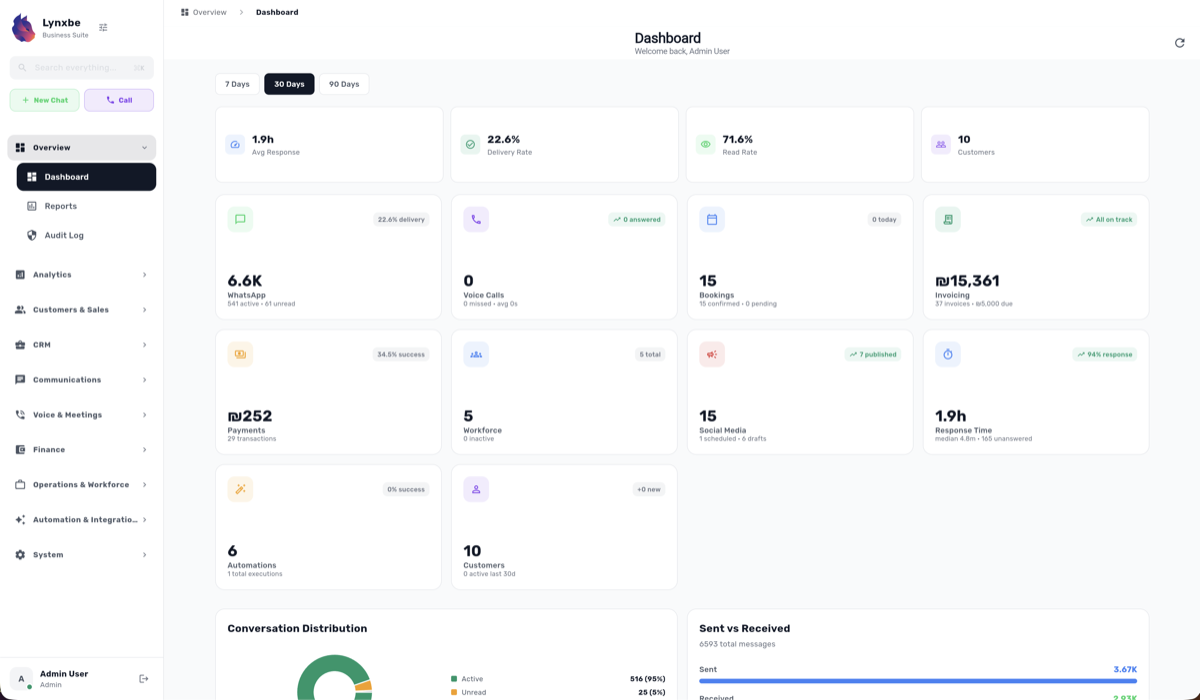
After logging into the system, look for the WhatsApp module in the sidebar menu. Click on it to access the module's settings page. On this page, you will see all the options and settings for the module.
Step 3: Setting Up Your WhatsApp Number
Now, you need to add your WhatsApp number. Click on the "Add WhatsApp Number" button and enter your number. Make sure you are using an active, verified number where you can receive messages. Then, you will need to verify your number via an SMS message that will be sent to you.
Step 4: Setting Up Message Templates
Using Lynxbe, you can create custom message templates. These templates allow you to send quick and organized messages to customers. Go to the "Templates" page in the WhatsApp module and click on "Add Template." Fill in the required details, such as the template name, message content, and any additional information needed.
Step 5: Setting Up Automations and Workflows
One of the significant advantages of using the Lynxbe module is the ability to create automations. Go to the "Automations" page and click on "Add Automation." You can specify which actions to take when a customer sends a message, such as sending an automatic reply or adding the customer to a specific group.
Step 6: Managing Groups
If you plan to manage groups via WhatsApp, click on the "Groups" page and add new groups. You can specify which members will be in the group, which messages will be sent automatically, and which templates will be used.
Step 7: Improving User Experience
To enhance the user experience, you can add quick replies for frequently asked questions. Go to the "Quick Replies" page and add responses that can be given to customers in conversation. This will save time and help you manage conversations more smoothly.
Step 8: Testing and Activation
After you finish setting everything up, it is important to test that everything is working properly. Send a message to yourself to ensure everything functions as it should. If there are issues, go back to the settings and check all the details you entered.
Best Practices for Setup
Once you have set up WhatsApp in Lynxbe, there are several best practices that can enhance your use of the module. First, ensure you have updated message templates. These templates can include promotions, service updates, or thank-you messages to customers. Updated templates can improve communication and create a better impression on customers.
Second, consider using chatbots to streamline your service. Chatbots can answer frequently asked questions and provide information to customers automatically. This not only saves time but also improves the customer experience by providing quick responses.
Industry Uses
Businesses in the restaurant industry can use the Lynxbe module to receive orders, send messages about new promotions, and manage orders conveniently. Using WhatsApp allows them to stay in touch with customers and provide fast, quality service.
In medical clinics, WhatsApp can be used to schedule appointments, send reminders to patients, and answer common medical questions. It is an excellent tool for maintaining contact with patients while saving time.
In the real estate sector, agencies can use WhatsApp to send information about new properties, schedule meetings with clients, and respond to inquiries immediately. This allows them to maintain close contact with potential clients and improve sales prospects.
Additionally, retailers can use WhatsApp to send messages about new promotions, manage orders, and provide customer support. Using WhatsApp allows them to enhance the shopping experience for customers and build long-term relationships.
Finally, professional services such as lawyers or accountants can use WhatsApp for communication with clients, sending important documents, and scheduling meetings. It is a convenient tool that facilitates daily work.
Troubleshooting
Like any system, you may encounter some issues while using the WhatsApp module. One common problem is an improper connection to the WhatsApp number. Ensure you are using an active number and that you are receiving SMS messages for verification.
Another issue could be a lack of automatic messages. If messages are not being sent automatically, check your automation settings and ensure they are activated correctly.
If you are having difficulties setting up groups, ensure that your settings are updated and that you have the appropriate permissions. In some cases, you may need to find the groups again and ensure they are functioning properly.
Finally, if you have issues with template messages, check that they are approved by WhatsApp and that you are using them according to the guidelines.




Comments
💬 Share your thoughts