Complete Guide: Setting Up SMS with Lynxbe

Complete Guide: Setting Up SMS with Lynxbe
In today's fast-paced digital world, effective communication with customers is paramount. One of the most powerful tools businesses can leverage is SMS messaging. With Lynxbe's SMS module, you can engage your customers with bulk and transactional SMS messaging, ensuring that your communications are timely, relevant, and impactful. This guide will walk you through the setup process, enabling you to harness the full potential of SMS for your business.
The SMS module from Lynxbe is designed to facilitate two primary types of messaging: bulk SMS campaigns and transactional SMS messages. Bulk SMS campaigns allow businesses to send promotional messages, alerts, or announcements to large groups of customers simultaneously, while transactional SMS messages are critical for sending essential information such as order confirmations, shipping updates, or appointment reminders. This dual capability makes SMS an indispensable tool for Israeli businesses looking to enhance customer engagement and improve service delivery.
Understanding the importance of SMS in the Israeli market is crucial. With a high mobile penetration rate and a tech-savvy population, SMS messaging is a preferred method of communication for many customers. By utilizing the SMS module, businesses can ensure that they stay connected with their audience, fostering loyalty and driving sales. This guide will provide you with a comprehensive step-by-step process on how to set up SMS with Lynxbe, along with best practices and use cases tailored for various industries.
Prerequisites
Before diving into the setup process, there are several prerequisites you need to address to ensure a smooth experience while using Lynxbe’s SMS module. Understanding these requirements will help you avoid potential roadblocks during the configuration process.
- An active Lynxbe account: Make sure you have an active account on the Lynxbe platform. If you do not have an account yet, visit the Lynxbe website to create one.
- Permissions: Ensure you have the necessary permissions to access and manage the SMS module. This may require administrator-level access, depending on your organization’s setup.
- SMS credits: Before sending SMS messages, you need to purchase SMS credits. These credits are required for both bulk and transactional messages, so ensure you have a sufficient balance in your account.
- Contact list: Prepare a list of customer contacts who will receive your SMS messages. Ensure that you have obtained the necessary consent to send them SMS communications.
- Message templates: Create and prepare message templates that you will use for your campaigns and transactional messages. This will help save time during the setup process.
Step-by-Step Setup Guide
Step 1: Log Into Your Lynxbe Account
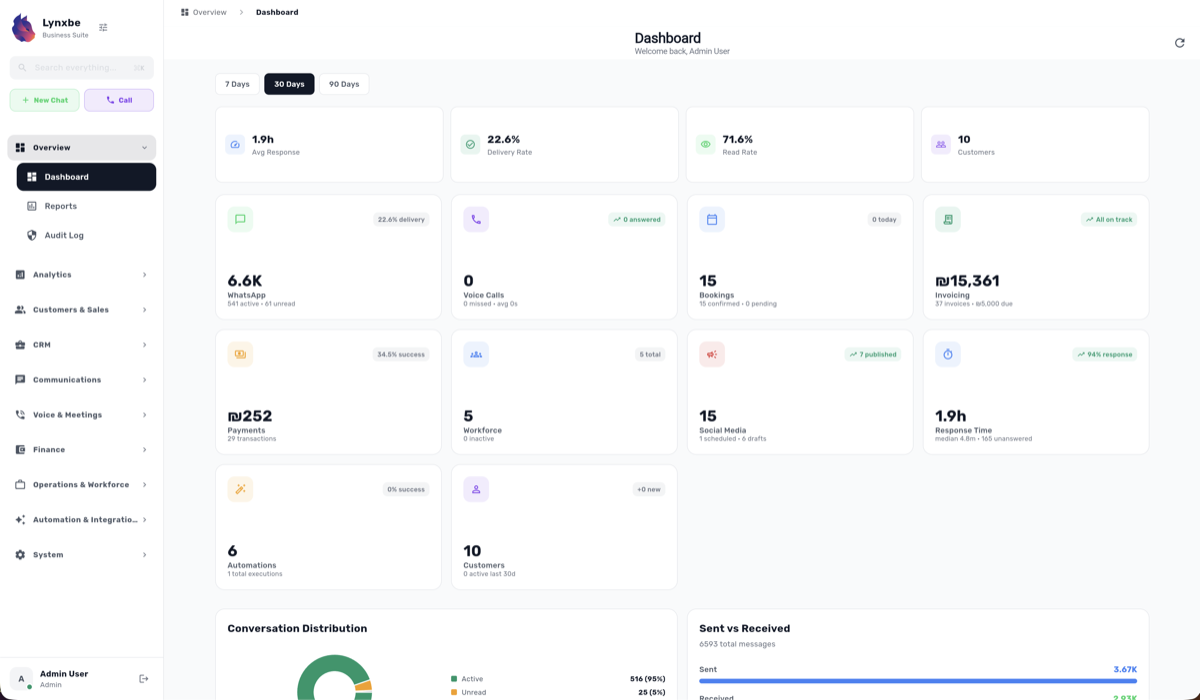
To begin the setup of the SMS module, log in to your Lynxbe account using your credentials. Once logged in, navigate to the dashboard where you will find various modules available for use.
Step 2: Access the SMS Module
From the dashboard, locate the SMS module. Click on it to access the main interface where you will manage your SMS campaigns and transactions. Familiarizing yourself with the interface will help you understand the features available at your disposal.
Step 3: Purchase SMS Credits
If you haven't already purchased SMS credits, this is essential before proceeding. Navigate to the billing section of your account and select the SMS credits option. Choose the amount of credits you wish to purchase and complete the transaction. Ensure that you have enough credits to cover your intended campaigns and transactional messages.
Step 4: Configure SMS Settings
In the SMS module, you will find various settings that you can configure to customize your SMS experience. Here are some key settings to consider:
- Sender ID: Set up a recognizable sender ID that your customers will see when they receive your messages. This is crucial for brand recognition.
- Opt-Out Mechanism: Configure an opt-out mechanism to allow recipients to unsubscribe from your messages easily. This is essential for maintaining compliance with regulations.
- Delivery Reports: Enable delivery reports to keep track of the success of your SMS campaigns and troubleshoot any issues that may arise.
Step 5: Import Your Contact List
Next, you need to import your contact list into the SMS module. Ensure that your contact list is in a compatible format (such as CSV) before importing. Navigate to the contacts section of the SMS module and select the option to import contacts. Follow the prompts to upload your contact list and verify that the data has been imported correctly.
Step 6: Create SMS Campaigns
With your contacts imported, it’s time to create your SMS campaigns. Navigate to the campaigns section within the SMS module. Select the option to create a new campaign. Here, you can choose whether you want to send a bulk SMS or a transactional message. Write your message, select your target audience from the imported contacts, and schedule the delivery time if needed.
Step 7: Test Your SMS Campaign
Before launching your SMS campaign, it’s crucial to test it. Send a test message to yourself or a small group of trusted individuals to verify that the message appears as intended and that all links and calls to action are functional. This testing phase can help you catch any errors and improve the overall quality of your campaign.
Step 8: Launch Your SMS Campaign
Once you are satisfied with your test messages, it’s time for the final launch. Go back to your campaign and select the option to send. Monitor the delivery reports to analyze the success of your campaign. Be prepared to engage with responses and feedback from your customers to optimize future campaigns.
Configuration Best Practices
While the basic setup process is straightforward, there are several advanced settings and optimizations you can implement to enhance your SMS communications further. Here are a few best practices to consider:
- Segment Your Audience: Consider segmenting your contact list based on demographics, preferences, or behavior. This allows you to tailor your messages and improve engagement rates.
- Use Personalization: Personalizing your messages by including the recipient's name or specific details can significantly increase the effectiveness of your communications.
- Analyze Delivery Reports: Regularly review the delivery reports to identify trends and areas for improvement. This data can help you tweak your messaging strategy for better results.
- Optimize Send Times: Experiment with different sending times to determine when your audience is most responsive. This can vary based on your industry and customer demographics.
- Compliance with Regulations: Always stay informed about SMS marketing regulations and ensure your communications comply with local laws to avoid penalties.
Industry Use Cases
Restaurants
In the restaurant industry, SMS can be a powerful tool for engaging customers. Restaurants can send out bulk messages promoting special offers, seasonal menus, or events. Additionally, transactional SMS can be used to confirm reservations and send reminders, ensuring customers don’t forget their dining experience.
Clinics
For clinics and healthcare providers, SMS messaging can streamline patient communication. Clinics can send appointment reminders, follow-up instructions, or health tips via SMS. This not only improves patient engagement but also reduces no-show rates.
Real Estate
In the real estate sector, SMS can be utilized to notify potential buyers about new listings, open house events, or price changes. Transactional messages can also communicate important updates about property inquiries or application statuses, keeping clients informed and engaged.
Retail
Retail businesses can leverage SMS to enhance customer engagement through promotional campaigns, loyalty program notifications, and cart abandonment reminders. By utilizing SMS effectively, retailers can increase foot traffic to their stores and drive online sales.
Professional Services
Professional services, such as consulting or legal firms, can utilize SMS for client communication. Sending reminders for meetings, updates on case statuses, or important deadlines can help improve client satisfaction and relationship management. SMS provides a convenient method for professionals to keep their clients informed.
Troubleshooting
Even with a well-planned setup, you may encounter some common issues while using the SMS module. Here are a few troubleshooting tips to help you resolve potential problems:
- Message Not Delivered: If your messages are not being delivered, check your SMS credits, ensure the recipient numbers are valid, and review any delivery reports for potential errors.
- Opt-Out Requests: If you receive multiple opt-out requests, ensure that your opt-out mechanism is functioning correctly and that recipients can easily unsubscribe from your messages.
- Low Engagement Rates: If your engagement rates are lower than expected, consider revisiting your messaging strategy. Analyze your content, timing, and audience segmentation to identify areas that need improvement.
- Formatting Issues: If your messages appear jumbled or incorrectly formatted, double-check your message templates and ensure they adhere to SMS character limits and formatting guidelines.
- Technical Issues: If you experience any technical issues with the SMS module, reach out to Lynxbe's customer support for assistance, providing them with detailed information about the problem.
Integration with WhatsApp, Voice, API Access
Lynxbe’s SMS module works seamlessly with other modules like WhatsApp, Voice, and API Access, enhancing your communication strategy across multiple channels.
- WhatsApp: By integrating SMS with WhatsApp, you can take advantage of both platforms to reach your customers. Use SMS for transactional messages while utilizing WhatsApp for more interactive communications, such as customer support or engagement campaigns.
- Voice: Combine SMS with voice services to create a multi-channel communication strategy. For example, send an SMS confirmation for a phone call appointment, providing customers with a consistent experience.
- API Access: For tech-savvy businesses, Lynxbe’s API Access allows for programmatic management of SMS features. You can automate SMS sending, manage contact lists, and integrate SMS functionalities directly into your applications.
Conclusion
Setting up the SMS module with Lynxbe is a straightforward process that can significantly enhance your communication strategy. By following this comprehensive guide, you can effectively engage with your customers through bulk and transactional SMS messaging. Remember to implement best practices, analyze your results, and continuously optimize your campaigns for the best outcomes.
Now that you’re equipped with the knowledge to set up SMS with Lynxbe, take the next step by logging into your account and exploring the SMS module. Engage your customers, drive sales, and enhance your brand’s visibility through effective SMS communications. Happy messaging!


Comments
💬 Share your thoughts