Complete Guide: Setting Up Invoicing & Payments with Lynxbe
Complete Guide: Setting Up Invoicing & Payments with Lynxbe
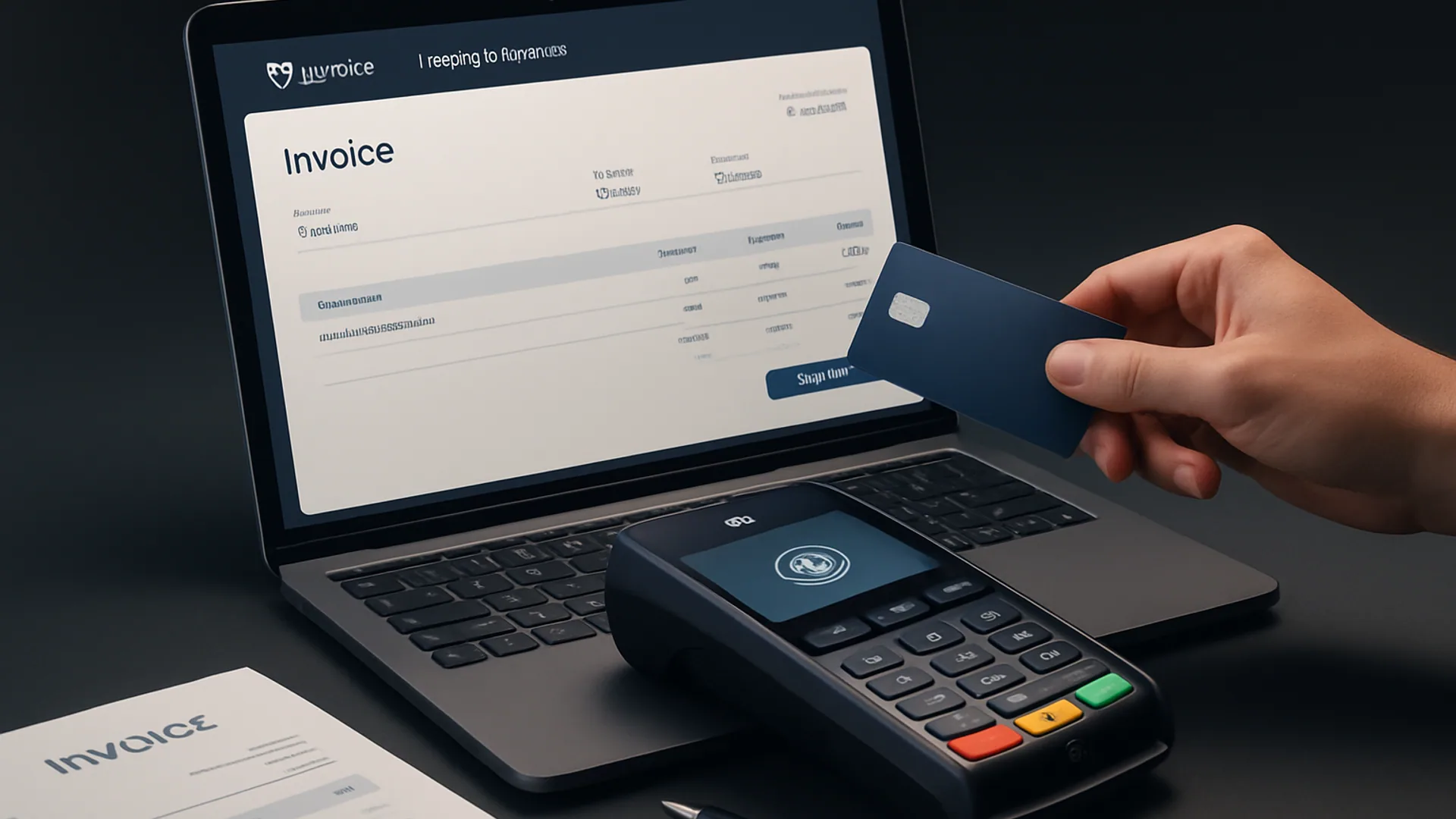
In the fast-paced world of business, managing finances efficiently is vital. The Invoicing & Payments module of Lynxbe offers a comprehensive solution for Israeli businesses to issue invoices and receipts, while also providing a platform to accept customer payments seamlessly. This module streamlines financial operations, allowing businesses to focus on growth and customer satisfaction.
Whether you are a small startup or an established enterprise, the Invoicing & Payments module helps manage your cash flow effectively. By simplifying the invoicing process and offering online payment capabilities, it ensures that you get paid faster. This functionality is particularly valuable for Israeli businesses, where timely payments can significantly impact operational efficiency and overall success.
Prerequisites
Before diving into the setup process, ensure that you have the following prerequisites in place:
- An active Lynxbe account: You must have an account with the necessary permissions to access the Invoicing & Payments module.
- User Permissions: Ensure that your user role has the permissions required to manage invoices and payment settings.
- Business Information: Gather your business details, including tax registration numbers, bank account information, and contact details, as these will be needed during the setup.
- Payment Gateway: Choose a suitable payment gateway compatible with Lynxbe for processing online payments.
Step-by-Step Setup Guide
Step 1: Access the Invoicing & Payments Module
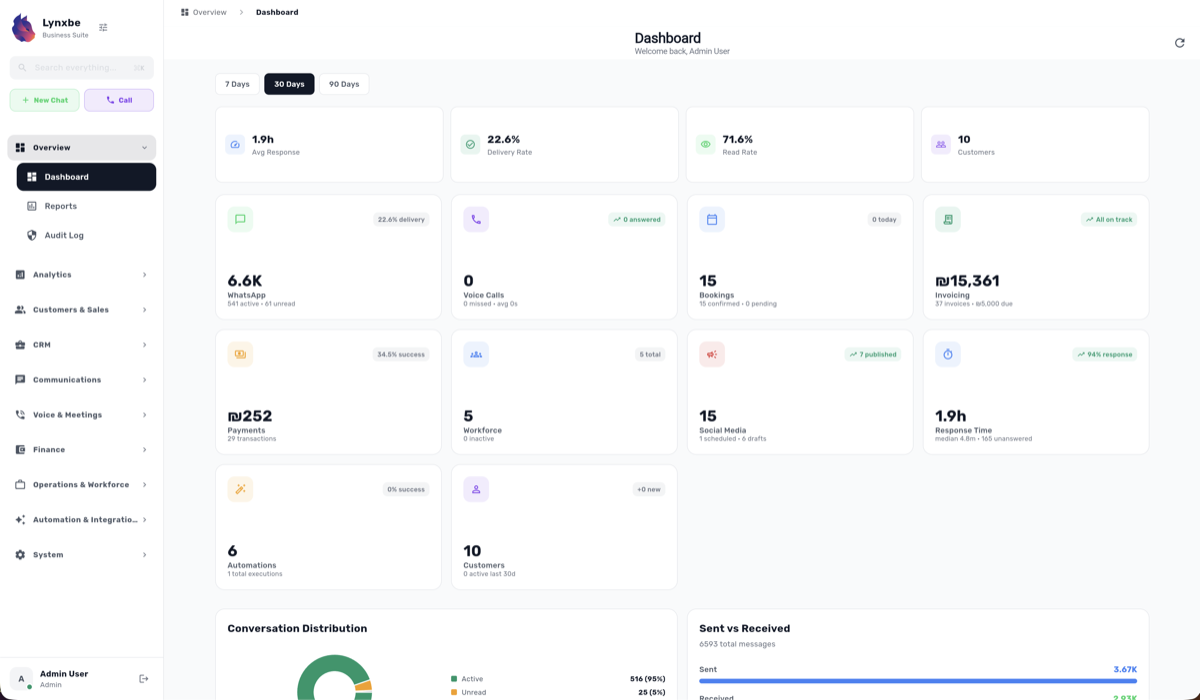
Log in to your Lynxbe account using your credentials. Once logged in, navigate to the dashboard. On the left sidebar, find and click on the "Invoicing & Payments" module to access its features.
Step 2: Configure Your Business Information
In the Invoicing & Payments setup page, locate the "Business Information" section. Here, you will enter essential details such as your business name, address, contact number, and tax information. This information will appear on all invoices and receipts issued through this module.
Tip: Make sure all details are accurate and up-to-date, as this will enhance professionalism and comply with local regulations.
Step 3: Set Up Tax Rates
Next, you need to configure the applicable tax rates for your business. In the tax settings section, click on "Add Tax Rate" and input the relevant information, including the tax name, percentage, and whether it is inclusive or exclusive of the total price.
Tip: Consult with a financial advisor to ensure compliance with Israeli tax laws when setting your tax rates.
Step 4: Create Invoice Templates
To maintain consistency in your branding, you can create customized invoice templates. Go to the "Templates" section within the Invoicing & Payments module and select "Create New Template." Here, you can personalize elements such as logo, colors, and fonts.
Tip: Keep your template simple and professional, ensuring it aligns with your brand image.
Step 5: Set Up Payment Methods
In this step, you will configure the payment methods you want to offer to your customers. Navigate to the "Payment Methods" section and click on "Add Payment Method." You can select from several options, including credit card, bank transfer, or online payment links.
Tip: Choose payment methods that are most convenient for your customer base to enhance payment collection efficiency.
Step 6: Enable Online Payment Links
To allow your customers to pay invoices online, enable the online payment links feature. Go to the "Settings" section, and under "Online Payment Links," toggle the feature on. You will also need to integrate your chosen payment gateway at this stage.
Tip: Test the payment link after setup to ensure it is functioning correctly before sending invoices to customers.
Step 7: Set Up Subscription Billing (if applicable)
If your business offers subscription-based services, you can configure the subscription billing feature. In the "Subscriptions" section, click on "Create Subscription," and set the billing frequency (e.g., monthly, quarterly) and amount.
Tip: Clearly communicate billing details to your customers to avoid confusion regarding subscription charges.
Step 8: Review and Finalize Your Settings
Before you start issuing invoices, review all your settings to ensure everything is configured correctly. Double-check your business information, tax rates, payment methods, and templates for any discrepancies.
Tip: Consider running a test invoice to ensure the entire process works smoothly from invoice creation to payment collection.
Configuration Best Practices
To optimize your Invoicing & Payments setup, consider the following best practices:
- Automate Recurring Payments: For subscription services, automate billing cycles to save time and reduce manual errors.
- Use Analytics: Regularly analyze invoicing and payment reports to identify trends, outstanding payments, and areas for improvement.
- Regularly Update Payment Information: Keep your payment gateway and business information updated to avoid payment disruptions.
- Integrate with Other Modules: Leverage integration with Marketing, Voice, and Booking modules to streamline customer communication and service delivery.
Industry Use Cases
Restaurants: Restaurants can utilize the Invoicing & Payments module to manage customer bills efficiently, offering online payment options to enhance the dining experience and reduce wait times for payment processing.
Clinics: Healthcare providers can issue invoices and accept patient payments online, streamlining the billing process and allowing for easy tracking of payments and outstanding balances.
Real Estate: Real estate agents can manage commissions, fees, and rent payments through the Invoicing & Payments module, ensuring timely payments while simplifying financial tracking.
Retail: Retail businesses can issue receipts and accept various payment methods, including online payments, enhancing customer satisfaction and operational efficiency.
Professional Services: Consultants and freelancers can issue invoices for their services, track expenses, and manage subscription billing for repeat clients, ensuring a steady cash flow.
Troubleshooting
Even with a robust platform, you may encounter some common issues during the invoicing process. Here are a few troubleshooting tips:
- Issue: Customers report difficulties making online payments.
Solution: Verify that the online payment links are correctly configured and that your payment gateway is functioning properly. - Issue: Tax calculations are incorrect.
Solution: Double-check the tax rates set in your configuration to ensure they align with current regulations. - Issue: Invoices are not being sent to customers.
Solution: Check your email settings and ensure that your email server is correctly configured to send out invoices. - Issue: Subscription billing is not processing.
Solution: Verify that the subscription settings are correctly configured and that the payment method is valid.
Integration with Marketing, Voice, Booking
The Invoicing & Payments module integrates seamlessly with other Lynxbe modules, enhancing overall business operations:
- Marketing: Utilize customer data from the Invoicing & Payments module to create targeted email campaigns and promotions, improving customer retention and engagement.
- Voice: Integrate invoicing with cloud telephony features, allowing you to communicate with clients about outstanding payments or send reminders via voice calls.
- Booking: For service-based businesses, link invoicing with appointment scheduling to invoice clients directly after service delivery, ensuring timely payments.
Conclusion
Setting up the Invoicing & Payments module in Lynxbe is a straightforward process that can significantly enhance your business's financial management. By following this comprehensive guide, you can streamline your invoicing processes, accept payments online, and improve your cash flow.
Now that you have the tools to manage invoicing and payments effectively, take the next step by implementing these features in your business. Don’t hesitate to explore the integration possibilities with other Lynxbe modules to maximize efficiency and drive growth.



Comments
💬 Share your thoughts