Complete Guide: Setting Up Voice with Lynxbe
Complete Guide: Setting Up Voice with Lynxbe
Today, the speed and efficiency of business communication are critical to the success of any business. The Voice module of Lynxbe offers cloud-based telephony solutions, allowing businesses to operate more smoothly and efficiently. With this module, you can manage incoming and outgoing calls, create call queues, record calls, and manage video rooms, all in one place. It is an excellent tool for Israeli businesses looking to upgrade their customer service level and streamline internal communication.
The Voice module benefits businesses of all sizes, from small businesses to large corporations. The system offers customized solutions, allowing each business to tailor the service to its unique needs. In an era where customers expect fast and available service, the Voice module provides the necessary tools to deliver an enhanced service experience, ensuring that your customers feel valued and important.
Prerequisites
Before you start setting up the Voice module of Lynxbe, there are several prerequisites that are important to meet. First, you will need an active account on the Lynxbe platform. If you do not have an account, you can easily sign up through the Lynxbe website. After opening the account, make sure you have the appropriate permissions to access the Voice module.
Additionally, make sure to check your internet connection. Since the Voice module is based on cloud technology, a stable and fast internet connection is essential to ensure high-quality calls. If you have special telephony equipment or smart devices you wish to use, ensure they are compatible with the Lynxbe system.
Step-by-Step Setup Guide
Step 1: Logging into the Lynxbe System
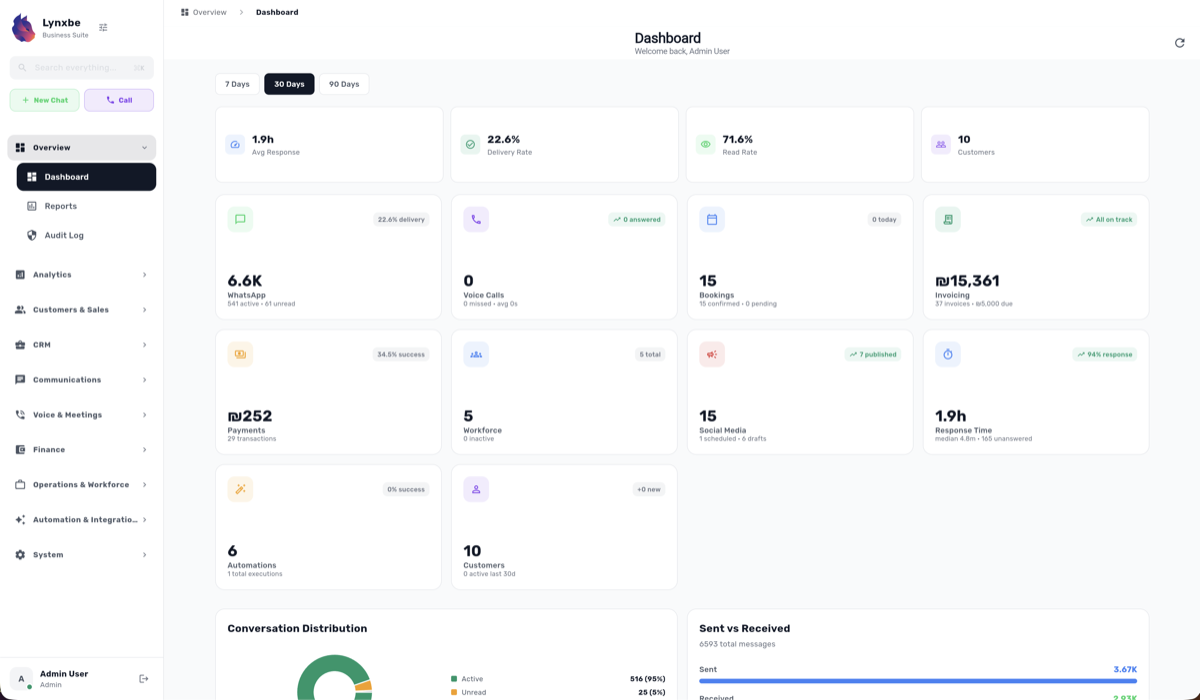
To get started, log into your account on the Lynxbe platform. After logging in, you will see the main dashboard displaying all available modules. Find the Voice module and click on it to go to the settings page.
Step 2: Setting Up Phone Numbers
At this stage, you will need to set up the phone numbers you wish to use. You can choose a new number or add an existing one. If you are adding a new number, make sure it meets the requirements of service providers. Then, perform the necessary settings for the numbers, such as the default language and contact details.
Step 3: Setting Up Call Queues
Now, you can set up call queues. These queues allow you to manage incoming calls in an orderly manner and ensure that every customer has access to service. Define the number of calls allowed in the queue, the waiting times, and the contacts who will handle the calls.
Step 4: Setting Up IVR (Interactive Voice Response)
IVR is a tool that allows customers to choose different options during a call. At this stage, you can set up the IVR menu to include the various options that customers can choose from. This can include options like speaking with a service representative, getting information about products, or directing customers to different services.
Step 5: Recording Calls
With the Voice module, you can record calls to improve service quality and conduct analyses later. To enable this feature, go to the call recording option and activate it. You can choose to record all calls or only specific calls.
Step 6: Video Conference Rooms
If you are interested in managing meetings conveniently, you can set up video conference rooms. At this stage, define the parameters of the video rooms, including meeting times, the maximum number of participants, and screen sharing options.
Step 7: Testing and Evaluation
After you have finished setting up all the functions, it is important to conduct tests to ensure everything is working properly. Perform test calls to check call quality, IVR processes, and call recordings. Ensure everything runs smoothly and that your customers receive optimal service.
Recommendations for Optimal Configuration
After you have finished setting up the Voice module, there are several tips that can enhance performance and ensure the system's success. First, establish clear success metrics to measure the effectiveness of calls and the services offered. These metrics can include waiting times, the number of completed calls, and customer satisfaction levels.
Second, invest time in learning about the various functions of the module. Lynxbe offers guides and additional resources that can help you understand all the functions in more depth. The more you understand the tools available to you, the better you can utilize them.
Applications in Various Industries
Restaurants
In restaurants, the Voice module allows customers to place orders easily and conveniently. With IVR, customers can choose from a food menu and order without speaking to a service representative. Additionally, call recordings allow restaurant managers to analyze service quality and make improvements accordingly.
Medical Clinics
In medical clinics, the Voice module can be used to schedule appointments with doctors. Customers can call and set an appointment through IVR, reducing the burden on the reception staff. Call recordings help improve service quality and track internal processes.
Real Estate
In the real estate industry, the Voice module enables synchronization between sales teams and customers. Customers can call and request information about properties, and the system can direct them to the appropriate representatives. Call queues and IVR ensure that every customer receives the necessary answers quickly.
Retail
Retail businesses can use the Voice module to provide customer support regarding orders, returns, and additional services. By maintaining call quality and recording them, businesses can understand customer needs and improve the services offered.
Professional Services
Professional services such as financial or legal consulting can leverage the Voice module to schedule appointments with clients. With IVR, clients can choose the service that suits them and easily schedule an appointment, saving time and streamlining the process.
Common Problem Solving
Problem 1: Poor Call Quality
If you are experiencing call quality issues, ensure you have a stable internet connection. Try checking your internet speed and ensure there are no network disruptions. If the problem persists, contact Lynxbe support.
Problem 2: Incoming Calls Not Coming Through
If incoming calls are not coming through, check your number settings in the system. Ensure the numbers are active and properly connected. Additionally, ensure that the call queues and


Comments
💬 Share your thoughts