Complete Guide: Setting Up Workforce with Lynxbe
Complete Guide: Setting Up Workforce with Lynxbe
In today's fast-paced business environment, managing employees, shifts, and attendance effectively is paramount for any organization. The Workforce module of Lynxbe equips businesses with essential HR tools tailored to meet these needs. Designed with Israeli businesses in mind, this module not only streamlines workforce management but also enhances productivity by providing a comprehensive solution to track employee performance, schedule shifts, and monitor attendance seamlessly.
Whether you are managing a small team or a large workforce, Lynxbe's Workforce module is particularly beneficial for HR managers, operations leaders, and business owners looking to optimize their workforce management processes. Effective management of employees translates to reduced operational costs, improved employee satisfaction, and a stronger bottom line. This guide will take you through the process of setting up the Workforce module, ensuring you harness its full potential to drive your business forward.
Prerequisites
Before diving into the setup process of the Workforce module, it’s crucial to ensure that you have the necessary prerequisites in place. This includes having an active Lynxbe account and the appropriate permissions assigned to your user profile.
- Active Lynxbe Account: Make sure you have created an account with Lynxbe. If you do not have an account, visit Lynxbe's website to sign up.
- Administrative Permissions: You must have administrative privileges to access and configure the Workforce module settings. If you are not the admin, reach out to your organization’s admin to gain access.
- Employee Data: Gather essential employee information such as names, roles, and contact details, as this will be necessary for creating employee profiles.
- Shift and Attendance Policies: Define your organization’s shift schedules and attendance policies to configure the module accurately.
Step-by-Step Setup Guide
Step 1: Accessing the Workforce Module
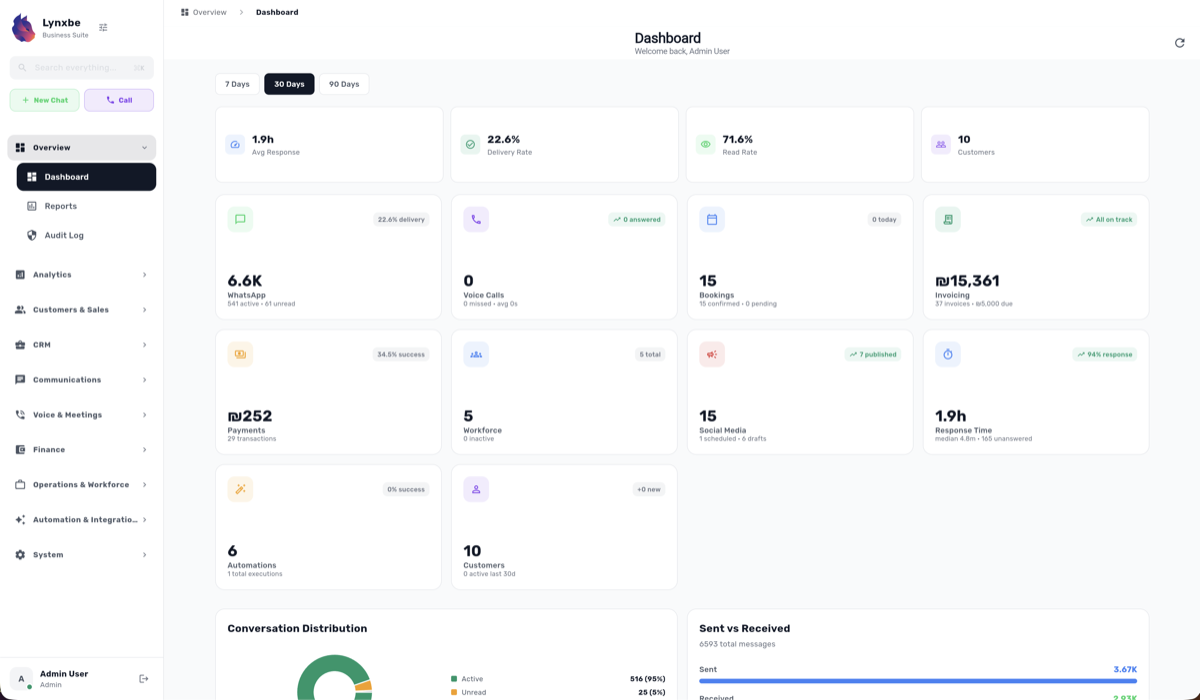
To begin, log in to your Lynxbe account. Once logged in, navigate to the dashboard. From the main menu, select the 'Workforce' option. This will take you to the main interface of the Workforce module where you can start setting up your workforce management tools.
Step 2: Creating Employee Profiles
In this step, you will create profiles for each employee within your organization. Click on the 'Employee Profiles' tab. Here, you can add new employees by entering their basic information including:
- Name
- Email Address
- Phone Number
- Role and Department
After entering the details, save the profile. It’s advisable to ensure that all employee information is accurate to facilitate effective communication and shift management later on.
Step 3: Assigning Roles and Permissions
Once employee profiles have been created, the next step is assigning roles and permissions. Navigate to the 'Roles' section within the Workforce module. Here, you can define specific roles such as Manager, Shift Leader, or Employee. Assign the relevant permissions to each role, allowing them access to necessary features such as shift scheduling, attendance tracking, and performance management.
Step 4: Setting Up Shift Schedules
The shift scheduling feature allows you to create and manage shifts effectively. Click on the 'Shift Scheduling' tab to define your organization's shift patterns. You can create standard shift times, such as:
- Day Shift: 08:00 AM - 04:00 PM
- Night Shift: 04:00 PM - 12:00 AM
- Weekend Shift: 09:00 AM - 05:00 PM
After defining the shifts, assign employees to their respective shifts based on availability and roles. Use the visual scheduling tool for ease of planning.
Step 5: Implementing Attendance Tracking
To monitor employee attendance, navigate to the 'Attendance Tracking' section. Here, you can set attendance policies, such as:
- Attendance Marking: Define how employees should mark their attendance (e.g., via mobile app, web portal).
- Late Arrivals and Absences: Set rules for late arrivals and absenteeism, including any penalties or reporting requirements.
Make sure to communicate these policies clearly to all employees to ensure compliance.
Step 6: Monitoring Team Performance
The performance monitoring feature allows you to evaluate employee productivity and effectiveness. Access the 'Team Performance' module, where you can set key performance indicators (KPIs) for each role. Regularly review performance reports to identify top performers and areas for improvement.
Step 7: Training and Support
After setting up the Workforce module, consider providing training sessions for your employees. Familiarize them with the features available, such as how to mark attendance, view their shifts, and access performance metrics. Utilize Lynxbe's support resources, including tutorials and customer support, to assist with any queries.
Step 8: Continuous Improvement
Finally, continuously assess and refine your workforce management processes. Gather feedback from employees and management on the system's usability and effectiveness. Regularly update shift schedules, attendance policies, and performance metrics based on the changing needs of your business.
Configuration Best Practices
To maximize the benefits of the Workforce module, consider the following best practices:
- Regularly Update Employee Profiles: Ensure that employee profiles are kept current, particularly when there are changes in roles or contact information.
- Utilize Automated Notifications: Set up automated notifications for shift reminders, attendance alerts, and performance feedback to keep everyone informed.
- Analyze Attendance Trends: Regularly review attendance data to identify trends, such as high absenteeism during specific times, and address any underlying issues.
- Engage Employees: Encourage feedback from employees about the shift scheduling process and overall satisfaction with the Workforce module. This can lead to improvements and a more engaged workforce.
Industry Use Cases
Restaurants
For restaurants, the Workforce module can streamline shift scheduling to accommodate peak dining hours. Managers can create flexible schedules that adapt to changing customer demand, ensuring adequate staffing while minimizing labor costs. Attendance tracking helps identify trends in employee performance and availability, allowing for better resource allocation.
Clinics
In a clinical setting, the Workforce module aids in managing healthcare professionals' schedules efficiently. By tracking attendance and shift patterns, clinics can ensure that they have the right healthcare providers available at all times, improving patient care and operational efficiency.
Real Estate
Real estate agencies benefit from the Workforce module by scheduling open houses and client meetings effectively. Keeping track of agent attendance and performance helps management assess productivity and optimize team dynamics, ensuring high-quality service for clients.
Retail
In the retail industry, effective workforce management is crucial for meeting customer demand during peak shopping times. The Workforce module allows retail businesses to create responsive shift schedules, track employee performance, and manage attendance, thereby enhancing the overall customer experience.
Professional Services
Professional services firms, such as consultancies and law firms, use the Workforce module to manage billable hours and team productivity. By tracking attendance and performance, these firms can optimize resource allocation, ensuring that they meet client needs while maintaining a productive work environment.
Troubleshooting
Even with a well-structured setup, issues may arise during the use of the Workforce module. Here are some common problems and their solutions:
- Issue: Employees are unable to mark attendance.
- Solution: Check that attendance settings are correctly configured and ensure employees have access permissions. Review any recent updates or changes to the system.
- Issue: Shift schedules are not reflecting correctly.
- Solution: Verify that shifts have been properly assigned to employees. Check for potential conflicts with other scheduled activities.
- Issue: Performance reports show incorrect data.
- Solution: Ensure that KPIs are set correctly and that employee performance data is accurately entered. Regularly review and validate data entries.
- Issue: Notifications are not being received.
- Solution: Check notification settings to confirm that employees have opted in for alerts. Ensure that email addresses and contact information are correct.
Integration with Marketing, WhatsApp, Voice
Lynxbe's Workforce module can seamlessly integrate with other modules such as Marketing, WhatsApp, and Voice to enhance overall business operations. Here's how they work together:
- Marketing: Utilize marketing tools to communicate with employees about upcoming training sessions, company events, or policy changes. Email campaigns can keep staff informed and engaged.
- WhatsApp: Leverage WhatsApp for instant communication with employees, allowing for quick updates regarding shift changes or attendance reminders. Automation can streamline this process further.
- Voice: Use cloud telephony to manage call queues and facilitate communication regarding employee performance or attendance issues. Integrating voice solutions can enhance internal communication efficiency.
Conclusion
Setting up the Workforce module in Lynxbe is a strategic move for Israeli businesses aiming to improve their workforce management processes. By following this comprehensive guide, you can ensure that your organization is equipped with the necessary tools to manage employees, shifts, and attendance effectively.
As a next step, explore the various features of the Workforce module, and consider integrating it with Lynxbe’s other modules for a fully optimized business solution. Start reaping the benefits of efficient workforce management today!



Comments
💬 Share your thoughts