Complete Guide: Setting Up Workforce with Lynxbe
Complete Guide: Setting Up Workforce with Lynxbe
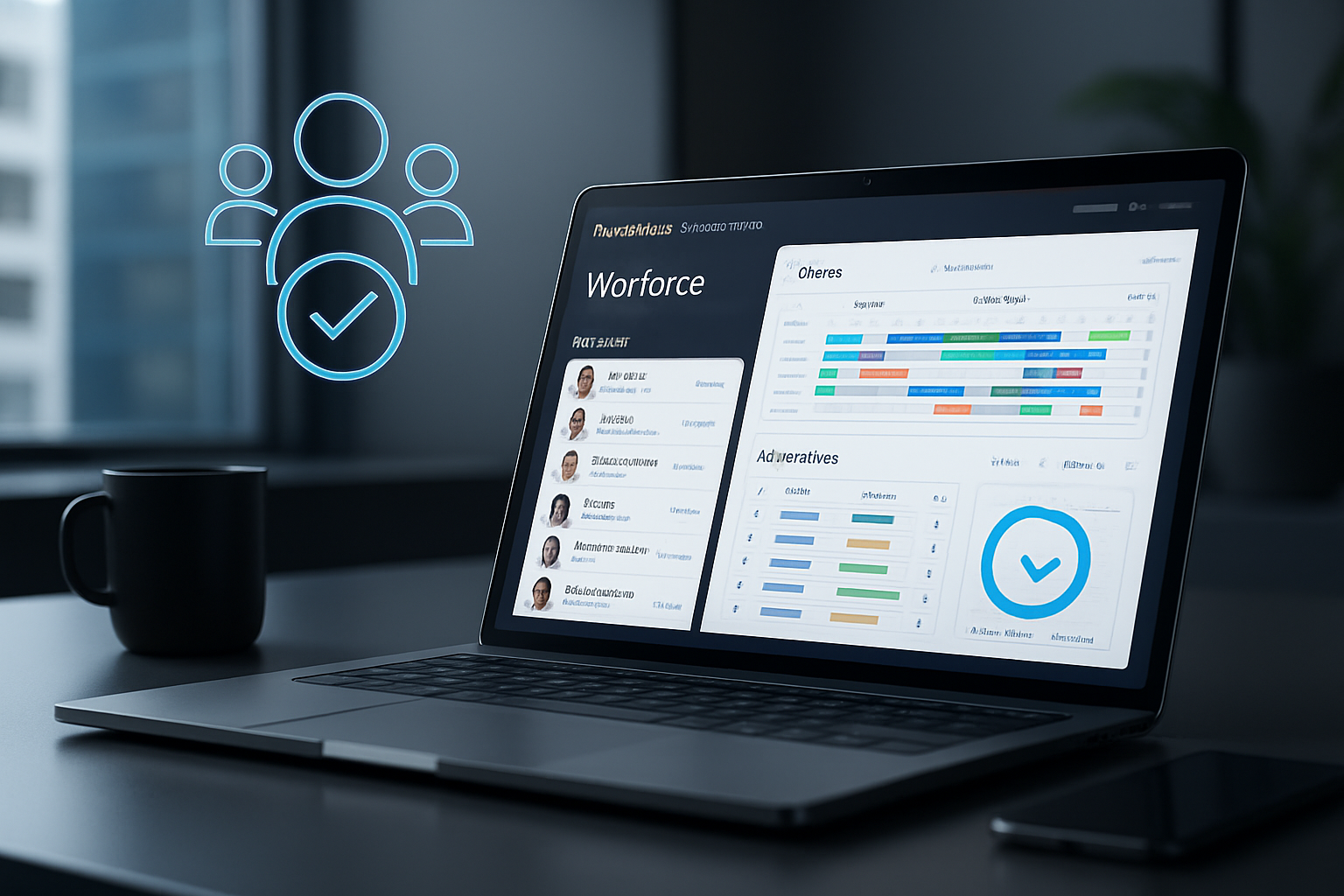
Nowadays, workforce management has become critical to the success of any business. The Workforce module of Lynxbe offers advanced tools for managing employees, shifts, and attendance tracking, enabling businesses to optimize their internal processes and improve overall performance. In this guide, we will learn how to set up the Workforce module of Lynxbe, what the prerequisites are, and how to use it perfectly to achieve the desired results.
The module is suitable for all types of businesses in Israel, whether they are restaurants, clinics, real estate, retail, or professional services. Any business can benefit from the advanced tools offered by Lynxbe, thus improving employee management and the overall performance of the organization.
Prerequisites
Before starting to set up Workforce, ensure that you have an active account on the Lynxbe platform. If you do not have an account yet, you are invited to register and gain access to all the advanced tools the platform offers. Additionally, make sure you have the appropriate permissions to access the Workforce module. Typically, users with managerial roles or specific positions in the organization’s hierarchy are those who can perform the necessary configurations.
It is also advisable to prepare in advance the necessary information for setting up employee profiles, shifts, and attendance data. This includes information such as employee names, roles, work times, and additional data that can facilitate the setup process.
Step-by-Step Setup Guide
Step 1: Accessing the Workforce Module
To get started, log into your account on the Lynxbe platform. After logging in, navigate to the modules tab and select the Workforce module. If you do not see the module, you may need to check your permissions or contact Lynxbe technical support.
Step 2: Setting Up Employee Profiles
At this stage, you need to add your employee profiles to the system. Click on the "Add Employee" option and fill in the required information, such as name, role, department, and contact details. You can also add a photo for each employee to facilitate identification.
Important tip: Ensure that the information you enter is accurate and up-to-date, as it will be used for managing shifts and tracking employee attendance.
Step 3: Setting Up Shifts
After you have entered the employee profiles, it’s time to set up the shifts. Go to the "Shifts" tab and click on "Add Shift." Here you can specify the hours and days each employee will work and allocate the shifts according to the needs of your business.
Another tip: Use shift templates to streamline the process. If the same shift occurs regularly, you can save time by creating a template that will be used in the future.
Step 4: Attendance Tracking
At this stage, you need to set up the attendance tracking system. This is an important tool that allows you to monitor your employees' working hours. Go to the "Attendance" tab and start configuring the tracking methods - whether through manual entry, card scanning, or a mobile app.
Make sure to update the data regularly to maintain accuracy. Accurate attendance will assist you in payroll management and making informed managerial decisions.
Step 5: Managing Team Performance
The Workforce module not only deals with managing working hours but also with tracking team performance. Go to the "Performance" tab and start setting goals and objectives for each team. You can use attendance and work data to assess performance and make adjustments as necessary.
Tip: Schedule regular meetings with teams to discuss performance and plan next steps. This will ensure that your employees are informed and continue to strive for improvement.
Step 6: Advanced Settings
After you have set up the basics, it’s a good idea to check the advanced settings of the module. This includes settings such as overtime payment rules, vacations, and restrictions on working hours. Go to the "Settings" tab and select the options that suit you.
These settings will help you streamline the employee management process and tailor it to the specific needs of your business.
Step 7: Updates and Training
After you have set up the module, it is important to update employees about the changes and new tools. Hold meetings with the teams to explain how to use the system and why it is important for the success of the business.
During the training, make sure to answer questions and provide practical examples of using the module. The more skilled your employees are in using the system, the more benefit you will gain from the tools offered by Lynxbe.
Best Practices for Setup
Once you have set up the Workforce module, there are several best practices that can enhance your use of the system. First, it is recommended to establish a uniform format for all employee profiles. This will help maintain order and organization in your data and make it easier to find the necessary information later.
Second, it is advisable to conduct periodic checks of attendance and performance data. This may include reviewing monthly reports to ensure the data is accurate and identifying trends or potential issues. The more you maintain data accuracy, the better your workforce management will be in your business.
Use Cases in Industry
Restaurants
In the restaurant industry, managing a team of employees is critical to success. The Workforce module allows restaurants to efficiently manage shifts, track the working hours of waiters, chefs, and service teams, and ensure everything runs smoothly. With the information obtained from the attendance system, informed decisions can be made about business operations and menus or promotions can be planned according to demand.
Clinics
In medical clinics, it is important to manage employee times and attendance accurately. The Workforce module provides tools for managing working hours, appointments, and attendance tracking, allowing doctors and medical teams to focus on patients without getting bogged down by administrative tasks. Thanks to advanced tracking, clinics can optimize their healthcare services and increase patient satisfaction.
Real Estate
Real estate companies need to manage teams of agents, project managers, and salespeople. With Workforce, it is possible to track the working hours of each team and manage shifts in an organized manner. The accumulated information allows for analyzing the performance of agents and making judgments about marketing and business strategies.
Retail
In retail stores, workforce management is an integral part of business success. Workforce allows store owners to plan employee working hours, manage shifts, and receive reports on employee performance. This information can assist in inventory



Comments
💬 Share your thoughts